
MachinesFluent v1.1.7 gives model management a makeover. Speech models, language models, and AI providers now live on one page, and smaller icons make the available capabilities easier to compare.
One place for speech models, language models, and providers
Open Settings → AI Models and you will find three tabs: Speech Models, Language Models, and AI Providers. You no longer have to jump between separate parts of Settings to manage them.
Speech Models is where you download, select, and configure transcription models. Language Models lets you choose which models appear in the dock. AI Providers is where you connect accounts, add API keys, or configure local services such as Ollama and LM Studio.
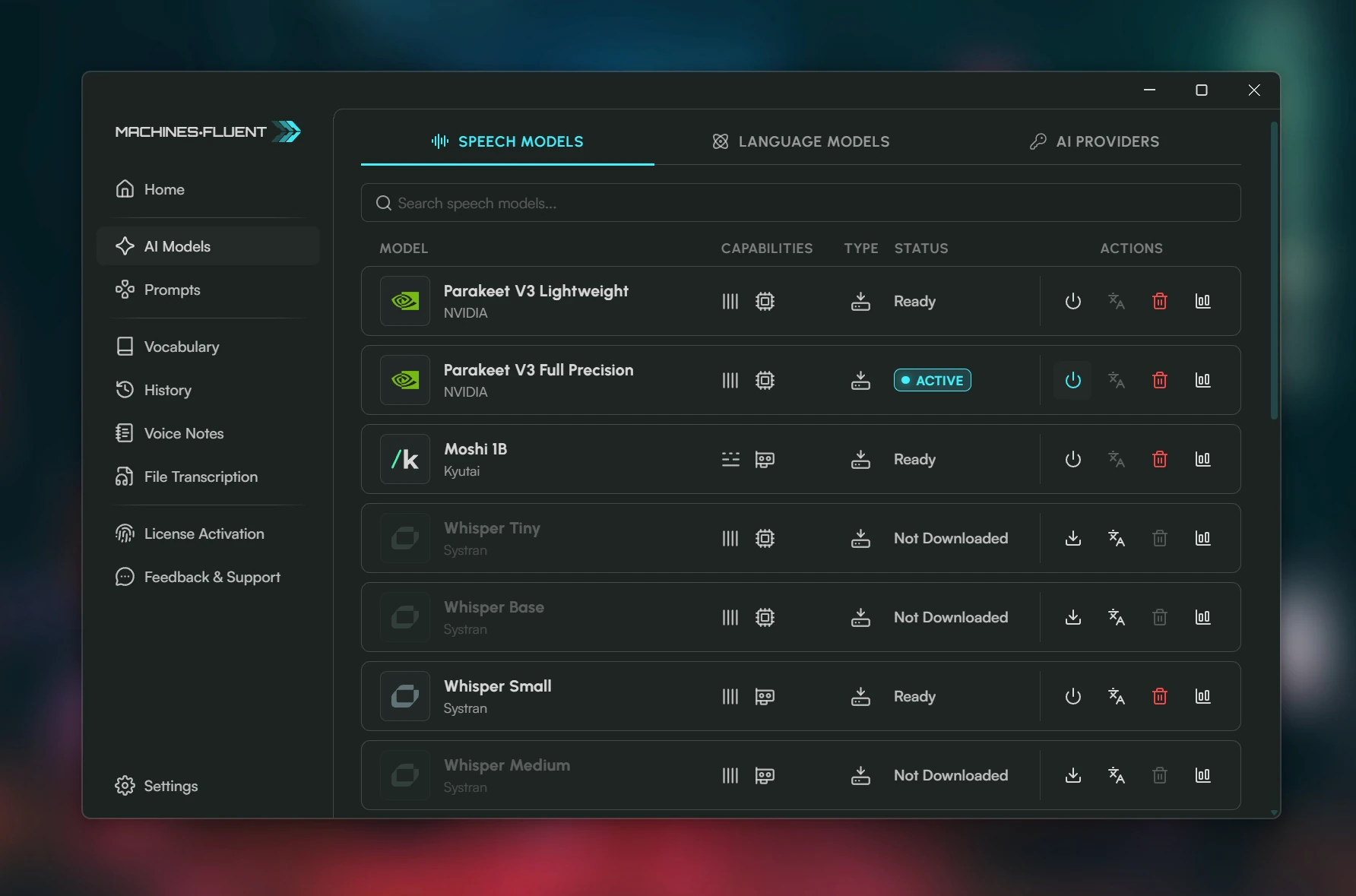
Speech models, language models, and provider setup now share one AI Models destination.
Your current model choices carry over. Existing links and setup guides also open the right tab automatically.
Capability icons replace bulky badges and categories
The old badges took up space without telling you much. The new icons are smaller, more consistent, and easier to scan:
| Applies to | Labels shown | What they tell you |
|---|---|---|
| Every model | Local or Cloud | Whether the model runs on your computer or through a provider. |
| Speech models | Batch, Streaming, CPU, or GPU | Whether transcription happens live or after recording, and which hardware it uses. |
| Language models | Speed, Intelligence, Images, or Web | The model's main strengths and whether it supports image or provider-hosted web features. |
No icon simply means we have not confirmed that capability for the model. The Web icon means the provider offers search, not that every request automatically uses it.
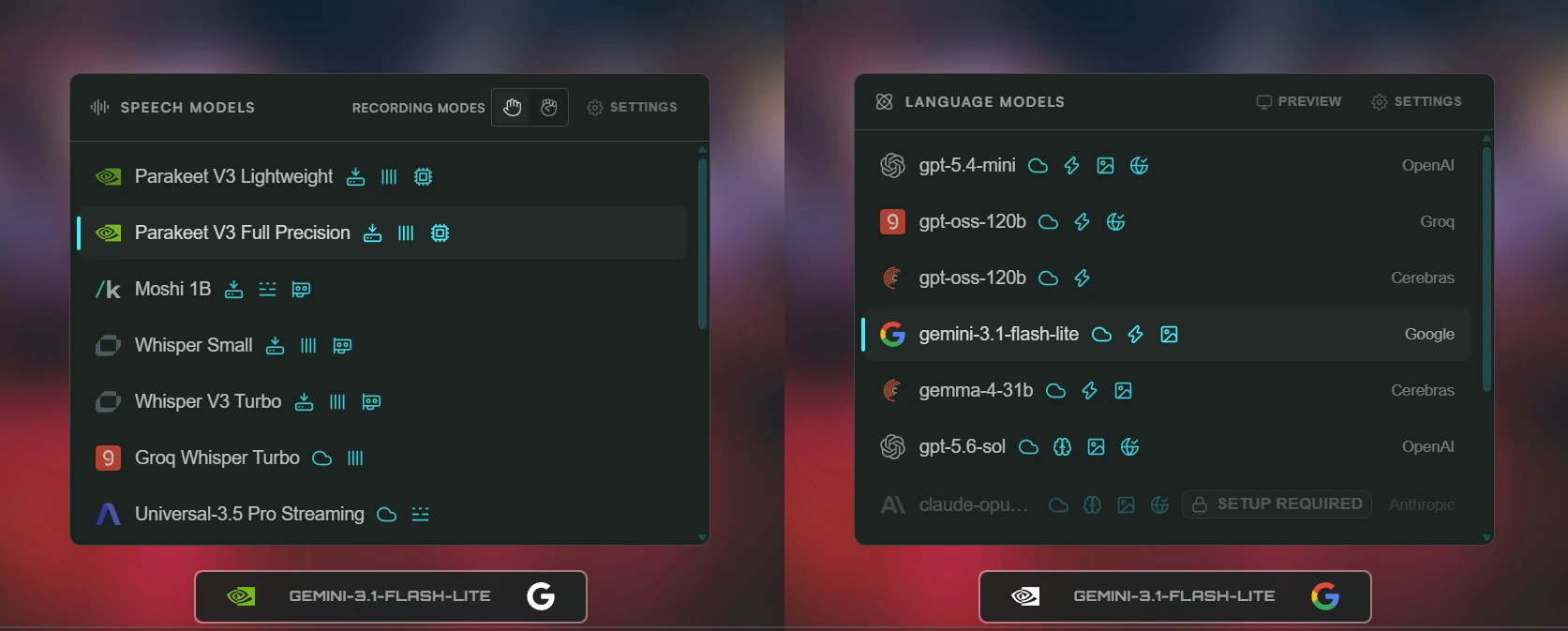
The same icons appear in Settings and the dock menus, so you only have to learn them once.
Assistant Mode and recording controls are clearer
Ask Mode is now called Assistant Mode and has its own bot icon, making it easier to tell apart from Preview. Unavailable buttons also share the same dimmed appearance, so the interface feels more consistent.
There is also a new Recording Cancel Key setting. You can use Backspace, Delete, or Escape to cancel buffered recording modes, including Dictation, Smart Dictation, Assistant Mode, AI Voice Command, and Voice Notes. Backspace remains the default.
This does not undo text already written by live Hands Free transcription. All eight interface languages have also been updated for the new names, model pages, and controls.
Smaller improvements
- Alibaba setup links now point to the current QwenCloud website, API-key page, and documentation.
- New speech-provider guides cover AssemblyAI, Deepgram, and Groq.
FAQ
Does v1.1.7 remove my current model choices?
No. Your selected models and customized Language Models menu carry over.
Can I use Escape to cancel a recording?
Yes, if you select Escape as your Recording Cancel Key. It works for buffered recording modes. Live Hands Free is different because its text is inserted as you speak and cannot be pulled back afterward.
Update to v1.1.7 for a cleaner model-management experience and faster model switching from both Settings and the dock.
Download MachinesFluent from MachinesFluent for Windows.