
MachinesFluent v1.1.6 gives Dictation and Smart Dictation separate shortcuts, lets prompts use three Prompt Context files, and adds better playback controls to saved History audio. The update also improves Ask Mode, shortcuts, recording, pasting, audio ducking, and the dock.
Separate shortcuts for raw and Smart Dictation
The normal Dictation shortcut now always returns the raw transcript. The new optional Smart Dictation shortcut runs the recording through your selected AI prompt. Both shortcuts follow your chosen Hands Free or Press & Hold recording style.
Smart Dictation's automatic routing settings are now called App & Website Triggers. Existing assignments are preserved. A prompt can still activate automatically in a configured app or website, or you can run it directly from its shortcut.
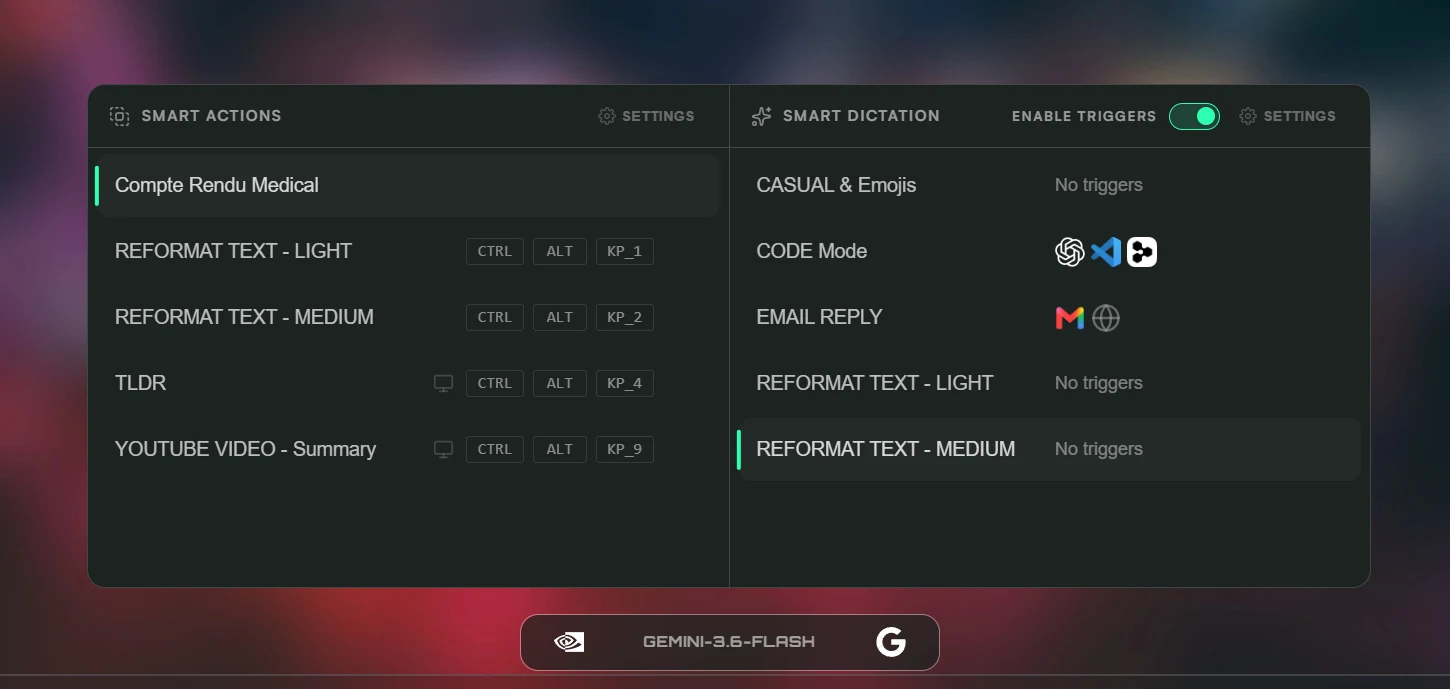
Trigger icons show which prompts activate automatically in an app or website.
If a new shortcut conflicts with another MachinesFluent action, the newly edited action takes ownership instead of leaving two actions assigned to the same keys.
Three Prompt Context files and a separate Ask Mode model
A prompt can now use up to three Prompt Context files in a defined order. You could combine a writing guide, project facts, and output-format rules without merging them into a single file.
Existing connections move into slot 1 automatically. Duplicate selections are blocked, and removing a file moves the remaining selections up. Renaming or deleting a Prompt Context file updates connected prompts safely.
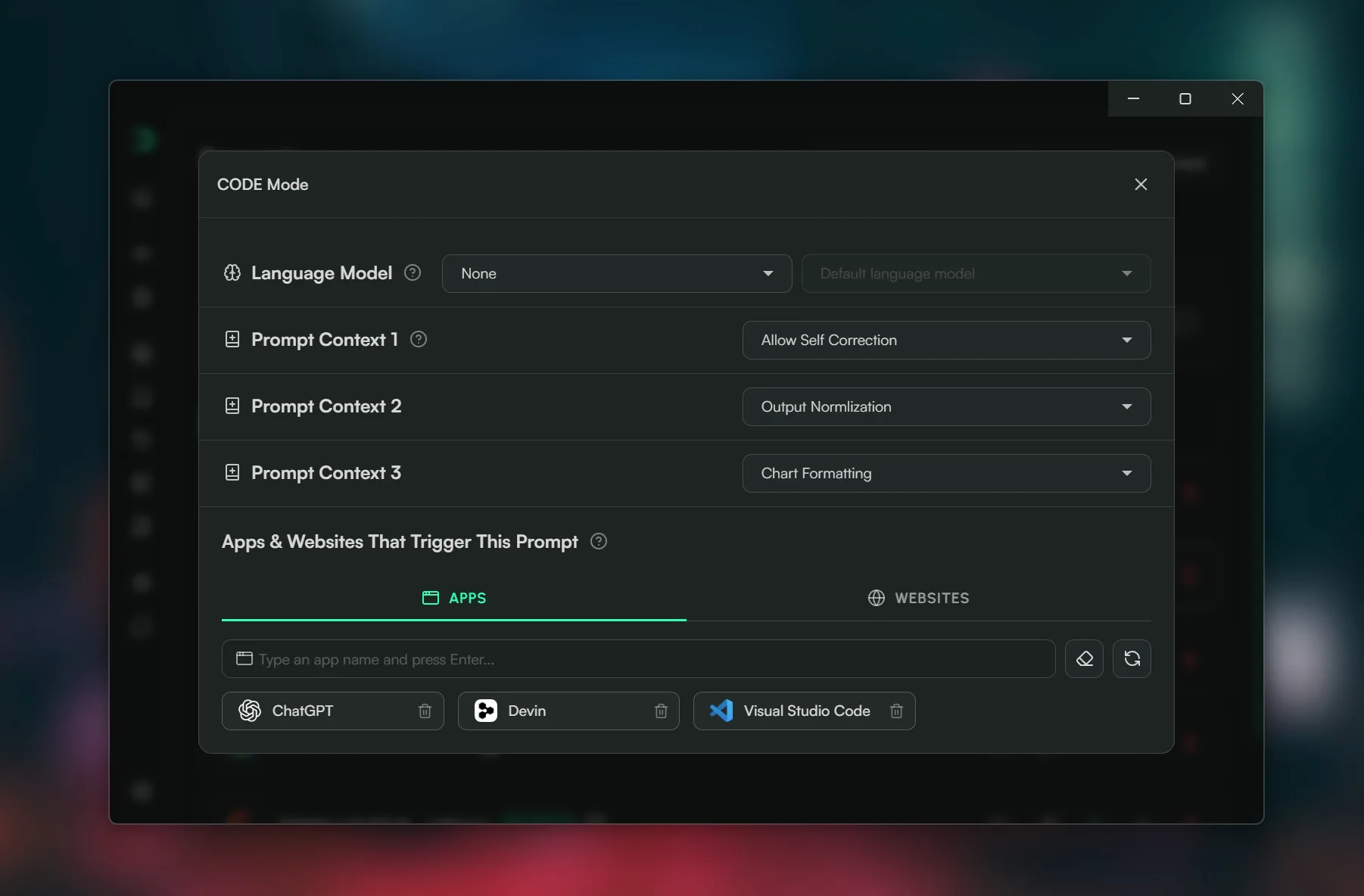
Each prompt now has three ordered Prompt Context slots.
Ask Mode also has an optional model setting of its own. Leave it at None to keep using the main model, or choose a different model for questions without changing Smart Actions or Smart Dictation.
Restore Default Prompts now restores the default Prompt Context connections without removing custom files or changing custom prompts.
Better audio playback in History
History recordings now show a visual audio timeline. Play, pause, or jump to any point by clicking or dragging; keyboard seeking works too. Newer Opus recordings and older retained WAV files are supported.
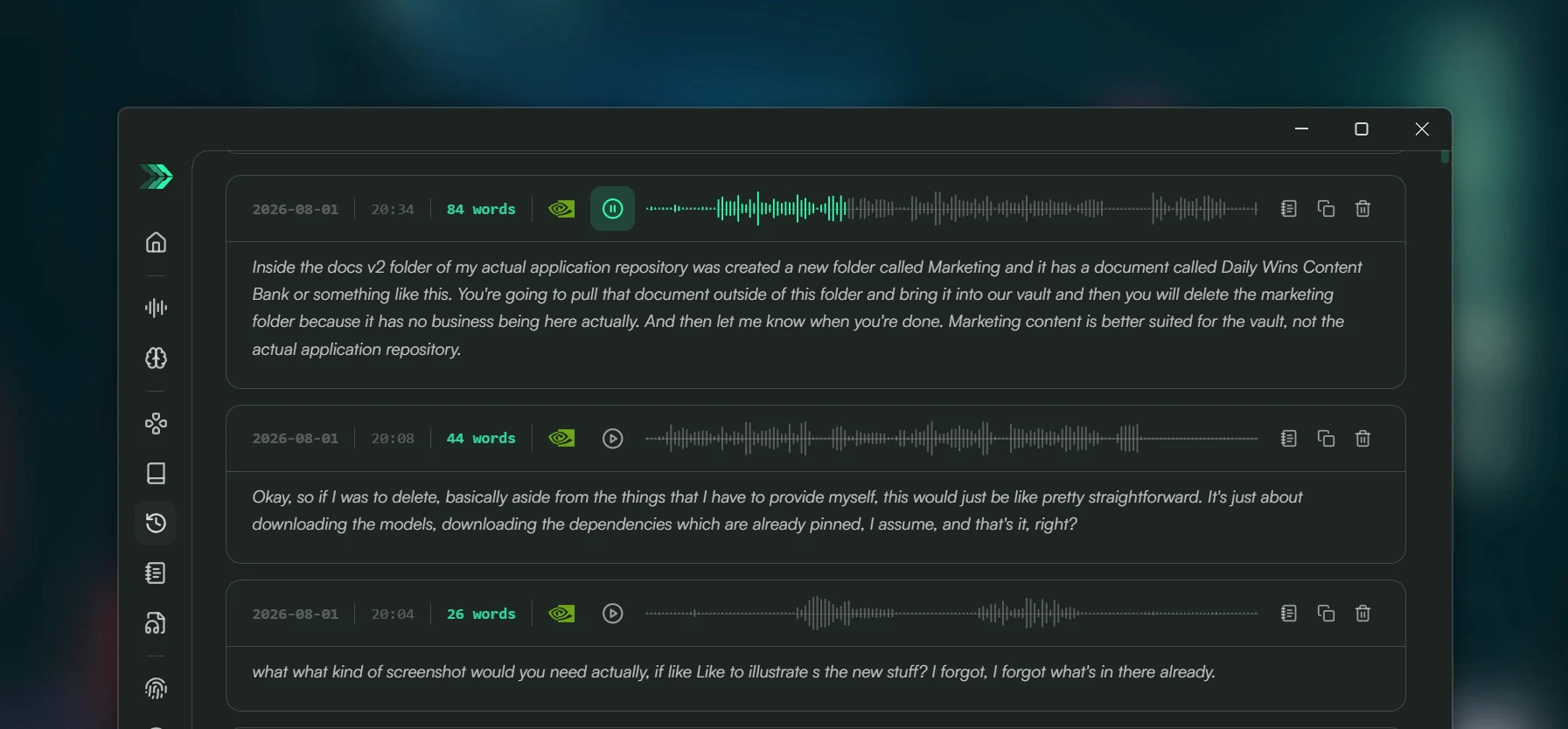
Click or drag to jump to another part of a saved recording.
Other changes
- Prompt, Prompt Context, vocabulary, snippet, and History lists are denser. App-trigger search, duplicate-vocabulary feedback, and snippet readability are also improved.
- Shortcut handling stays responsive while speech recognition and AI work run.
- AssemblyAI streaming now uses Universal-3.5 Pro in Balanced mode, lists 18 supported languages, and waits for the final transcript before ending the session.
- Recording sounds now play when the microphone is actually ready.
- Optional recording-volume ducking now supports an 80–100% reduction without lowering MachinesFluent's own cues.
- Long recording lists now stay more responsive while you browse and play saved audio.
- Dock transitions are smoother, including movement between monitors with different display scaling. Dock borders now have Thin, Medium, and Thick options.
- Consecutive dictations keep their trailing space, and overlapping clipboard operations are handled in order to reduce paste collisions.
- Model setup and Dock Menu guidance are clearer, and the Spanish, Italian, German, Russian, Japanese, and Korean translations cover the new v1.1.6 controls.
FAQ
Does Dictation use AI processing automatically?
No. Dictation stays raw; use the separate Smart Dictation shortcut or an App & Website Trigger for AI processing.
Can Smart Dictation use Hands Free and Press & Hold?
Yes. It follows the recording style selected for Dictation.
How many Prompt Context files can one prompt use?
Up to three, applied in the numbered order shown in the prompt settings.
Does the new History playback work with older recordings?
Yes. It supports retained WAV recordings as well as newer Opus recordings.
Update to v1.1.6 if you use Smart Dictation, Prompt Context, Ask Mode, or saved History audio.
Download the current version from MachinesFluent for Windows.